

So, you are using Discord to chat with your buddies from your gaming community, right?
But, since we are in the middle of a global pandemic, you now use it to communicate with other friends, work-mates, and relatives.
Discord is now an essential part of your life!
Read also: 6 Best Wireless Mics for Computer Reviewed in 2026
You now have a dedicated space on Discord to talk to your parents, brothers, and sisters, but you don't really "chat" anymore, you actually send voice notes and voice calls.
Eventually, you started doing more and more voice calls, but you always have the same problem…
People complain you are not loud enough and they can't really understand clearly what you are trying to say… The Discord volume is always too low.
So what should you do?
You need to somehow find a way to modify your mic sensitivity in order to boost your discord mic signal level so people can actually understand you.
How can you improve this?
Read this article, and you will know how to fix this in order to make your voice & video calls much smoother!
How To Make Your Mic Louder On Discord
Find a dedicated mic
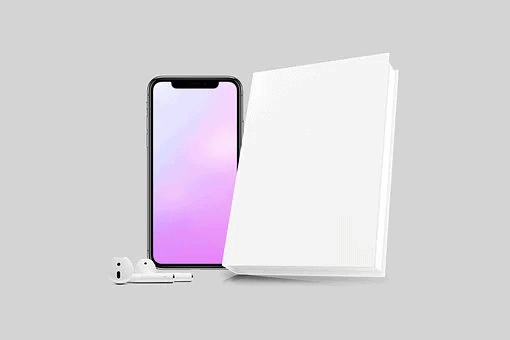
A good place to start is by not using the microphone on your laptop or phone because they tend to be low-quality and kinda dull.
Get a dedicated microphone.
If you want something portable, you can go ahead and buy those earbuds that have an embedded mic on the cable, kinda like the ones that come with smartphones.
Now, if you have a bit more money, there are plenty of good wireless earbuds that have dedicated microphones.
These are really lightweight, they sound good, and they capture your voice very easily.
If you want a fixed microphone, on a desktop computer, for example, there are a good amount of USB microphones that sound pristine and they are extremely loud, you will never complain.
Try better location for the microphone
Sounds physics are simple.
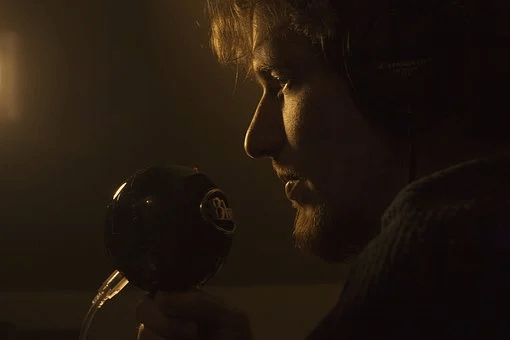
The closer you get to the microphone, the more signal it will capture.
Just like that!
If you are trying to speak to a microphone that is 3 feet away from you, no wonder it sounds dull and noisy.
Try moving the microphone closer to your mouth, perhaps 6 inches apart, the results will be obvious.
As soon as you do this, the microphone level will be boosted quite a lot.
Be careful adjusting your mic gain!
Adjust your microphone gain – "Microphone Boost"
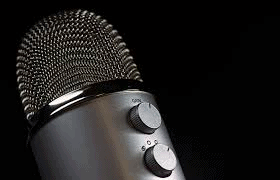
If you are using a pro-level desktop USB microphone, chances are it will have some kind of gain control.
This gain control could be as simple as a gain knob, a gain slider, or a switch.
Look for this, and start speaking while adjusting this control.
You will want to have the Discord screen up so that you can see how "loud" is your signal hitting the software.
Don't go super loud, as it will distort and it will be impossible to understand your speaking.
Crank that knob until it starts to saturate, at that point, go back a few notches and you should be golden!
In other words, boost your microphone volume knob! Easy peasy.
Try other polar patterns on your microphone
Okay, this might sound strange but here it goes!
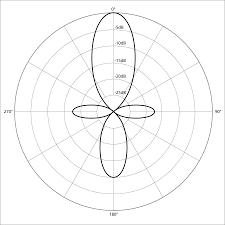
If you have a pro-level microphone, perhaps a USB condenser microphone, you might find that these mics give you the ability to switch between different polar patterns.
Famous options include omnidirectional, figure-9, and cardioid.
If you are going to be the only person talking into the microphone, there is absolutely no reason in picking the Omni or figure-8 patterns since these capture ambiance too.
You want to make sure you select the cardioid pattern so it only captures your voice, period.
This will reduce the ambient noise and make the signal loud and clear.
Experiment with boosting level on your software
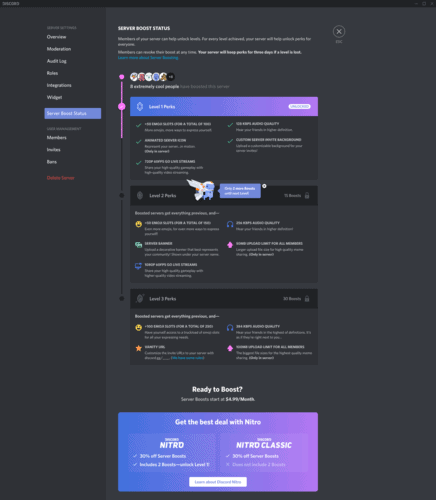
Your sound card will let you control the sound settings in order to boost the gain (or sensitivity) of your microphone within its dedicated software.
There are also options such as "Volume Booster" from Windows 10, as well as the Audio/MIDI setup on macOS that will let you modify these levels.
Keep in mind, before you even consider doing this, you might want to make sure your microphone is positioned correctly.
Try the Discord Priority Speaker function
If none of the above worked, you might need to be a bit rude, but who cares?
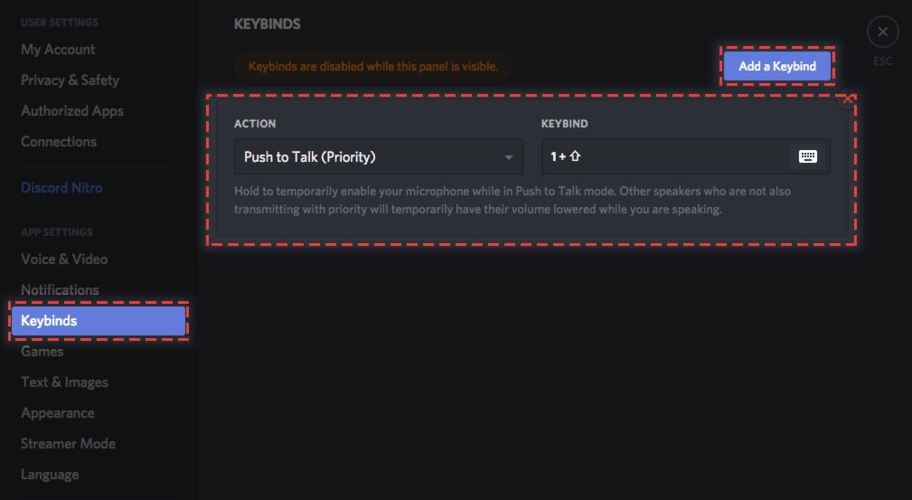
Go ahead and set yourself as the priority speaker.
This will pretty much set your level at "eleven" and everyone else at "1".
So yes, you will have complete control over the conversation, and realistically they will have to listen to you, even if they don't want to!
Keep in mind, the Discord Priority Speaker function only works under a "push-to-talk" situation.
You will need to set up the "push-to-talk" feature first.
And then, as soon as you push that talk button, BOOM! You are now "God" in that conversation.
You just became the loudest person in the room while everyone else became super dull, almost muted!
Find a better space to talk!
This might sound silly, but this is extremely important!
You can't have a video call or a voice call, if you are in the middle of a football game, for example.
You need to find a quiet space to locate in order to do this.
Avoid crowded spaces, because they will have lots of background noise from others talking.
Also, try avoiding outdoors, because exterior noise and wind can be problematic too.
Always try to do your Discord voice calls in your room, living room, or quiet space that you know and have complete control over the sound and noise.
Read Also: How to Earrape Mic? (Discord, Zoom) – Don't Miss this Guide
Conclusion
AND THAT IS IT!
Follow these steps and I can guarantee you will make your mic louder on discord and people will understand you better!