


Have trouble or don't know how to pair TOZO earbuds with your device? Be relaxed, you are in the right place. Here's a detailed guide that will explore the seamless pairing of TOZO earbuds allowing you to enjoy your favorite music and take calls wirelessly. Let's get started!
Quick Answer
TOZO earbuds connect using Bluetooth, therefore the pairing process is similar to all other wireless earphones out there.
- Start by opening the earbud case and activating Bluetooth on your device.
- Once that's done, access the Bluetooth settings where you'll see a list composed of available devices.
- Find the TOZO earbuds and select them. Within a matter of seconds, the connection will be established.
It is simple on the surface but it can be a bit of a problem if you have multiple devices with different operating systems. As the interfaces are different so you might need to figure out the connection process. So, continue reading to learn how to connect TOZO earbuds with iPhone, Android, and Mac.
How to Pair TOZO Earbuds? Getting Into the Pairing Mode
It is really easy to put the TOZO earbuds in pairing mode. Listed below are the required steps:
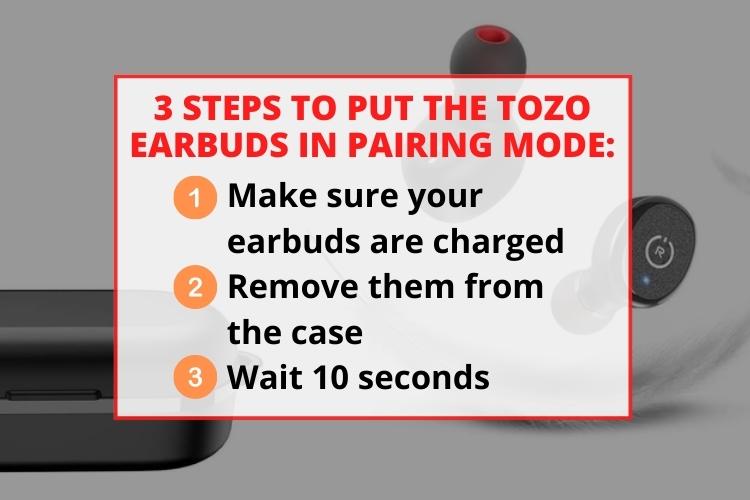
- Firstly, make sure your earbuds are charged. If so, then remove both of them from the case.
- As soon as they are taken out of the case, they will power on and pair with each other. It usually takes no more than 10 seconds.
- The right bud is the master in most cases and will enter pairing mode on its own.
Establishing the Connection With Older Models
Keep in mind that some TOZO wireless earbuds might have a different pairing process for older devices. For a swift connection, follow the instructions mentioned below:
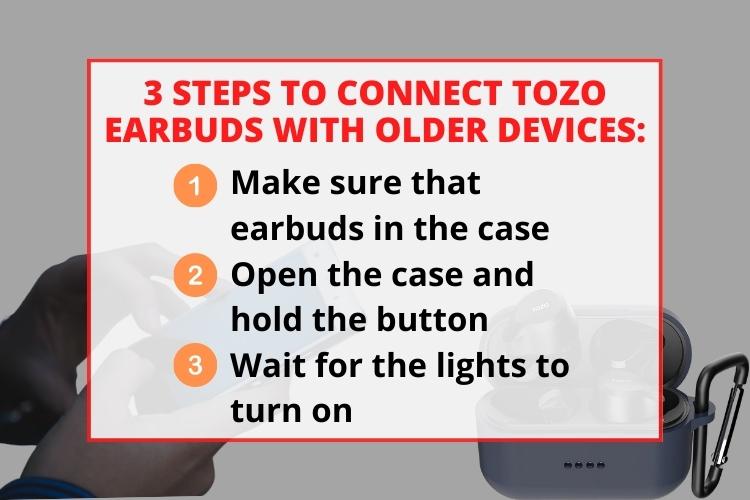
- Make sure that both earbuds are present in the charging case.
- Flip the case open and hold the button present on it.
- This will turn on the lights, thus letting you know that it is in pairing mode.
How to Connect TOZO Earbuds with an iPhone?
A lot of people who use iPhones as their primary smartphones are always conscious of using earbuds from brands other than Apple. Pairing TOZO earbuds with an iPhone is also pretty straightforward.
- Head into the "Settings" section of your iPhone.
- Go to the "Bluetooth" menu.
- Find your earbuds and connect.
That's it! Your earbuds will get connected to your phone.
An Insight Into Pairing Process for Android
You can easily connect them with an Android by following these steps:
- Go to the "Settings" section and turn on "Bluetooth".
- While in the Bluetooth section, tap on "Pair New Device".
- A list will appear and touch on the buds to connect.
Pairing TOZO earbuds with your Android phone is not hard. You need to go through the right procedure and you will be listening to music or watching a movie in less than a minute.
Pairing Process with a Mac Explained!
For people using a Macbook, pairing is also quick. Just do as explained below:
- Click on the Apple logo present in the top left section.
- Go to "System Preferences".
- Click on the "Bluetooth" setting.
- Locate your earbuds and click on them to pair the wireless device.
This process is the same for all Mac devices such as MacBook, iMac, etc.
Connectivity Process on a Laptop
Every laptop has Bluetooth built right into it so connecting is not hard. But if you are a PC user, you will need an adapter. The steps for connecting the buds remain the same in both situations which are:
- Click on the "Start Menu" and go to "Settings".
- Move to "Bluetooth & Other Devices".
- Proceed to click on "Add Bluetooth or Other Device".
- You will get a list of nearby devices. Click and connect.
Why Aren't the Earbuds Connecting To Your Device? 3 Things to Know
If they are not connecting then a few things can be the culprit. The following things should be checked:
1. No Prior Connections
A lot of times people try to connect while the buds already are connected to some other device. This won't allow the connection to be made. For a successful pairing, make sure there is no prior connection.
2. Whether Earbuds and Device are Charged
If your smartphone or laptop is low on charge then it might be another cause of the earbuds not connecting.
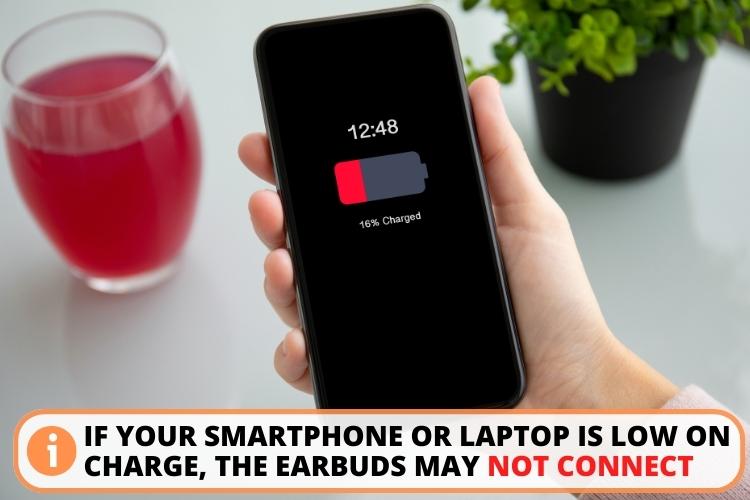
- It is because a lot of devices disable some functionalities due to low power. This is for the device to last longer.
- Bluetooth is also included in this list so always make sure that there is enough charge in your device.
- It is also important to charge your Tozo wireless earbuds properly and then pair them with a device.
- A low battery can cause pairing problems and stuttering while playing audio.
3. Resetting The TOZO Earbuds
If you have already tried the above-mentioned methods with no results. Then, the best thing is to simply reset them and then try again to pair TOZO earbuds. You should start by disconnecting the earbuds from the device's settings in the Bluetooth menu.
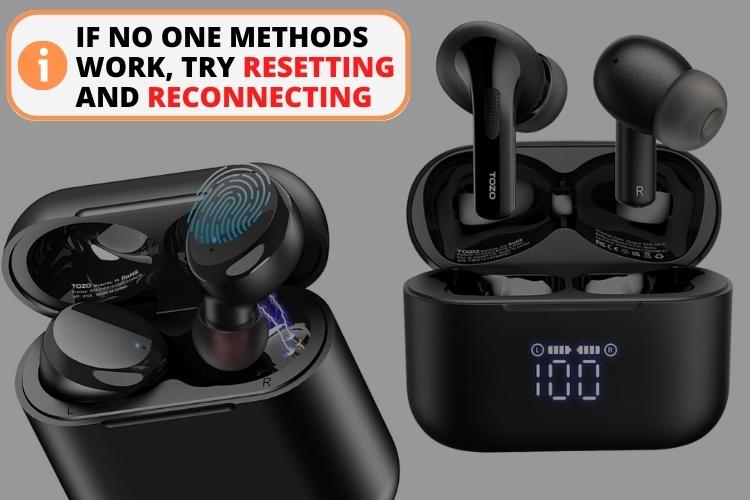
Follow these steps to reset them:
- Take the buds out of the case.
- Press on the touch pads for about 3 secs.
- Hold it down until they are completely turned off.
- After they are off, hold it down once again but this time keep holding for about 8-10 secs.
- This is going to start the reset process and the right earbud will start flashing red and blue.
Once, it is done, you should try to pair TOZO earbuds again with your Bluetooth device. Keep in mind that the reset process is also different for some models. The other method is to hold the button on the case for about 10-20 secs. Keep holding until it blinks five times and let it go. Now, the earbuds should start pairing with other devices.
For more insight into resetting, check out this video:
2 Possibilities of No Sound With Headphones Being Connected
If you find yourself not hearing any sound despite having your TOZO headphones connected, there could be a few reasons.
- No Media Sound: On mobile devices, the media sound may be automatically turned off, assuming you're using headphones for phone calls. To address this, check the settings on your TOZO headphones and ensure media sounds are enabled if you can't hear music or videos.
- Sound Or Connectivity Driver Issue: There may be driver issues causing your headphones to not play sounds when connected to an input device.
How To Troubleshoot Bluetooth Devices on Windows?
Currently, there is a widespread issue affecting connectivity. Surprisingly, Microsoft claims that the problem is unrelated to their software. Here is what you can do to fix Bluetooth connectivity:
- Try running the troubleshooter. You need to go to "Find and Fix Problems with Playing Audio" using the search bar.
- Go ahead with the troubleshooting process and check if it fixes the problem.
Check out this helpful video for further details:
Troubleshooting Audio Issues on a Mac
Most of the issues are easily resolved by setting the default audio device. This is how you can do that:
- Click on "System Preferences" and open the "Sound options".
- Set your headphones as the default device.
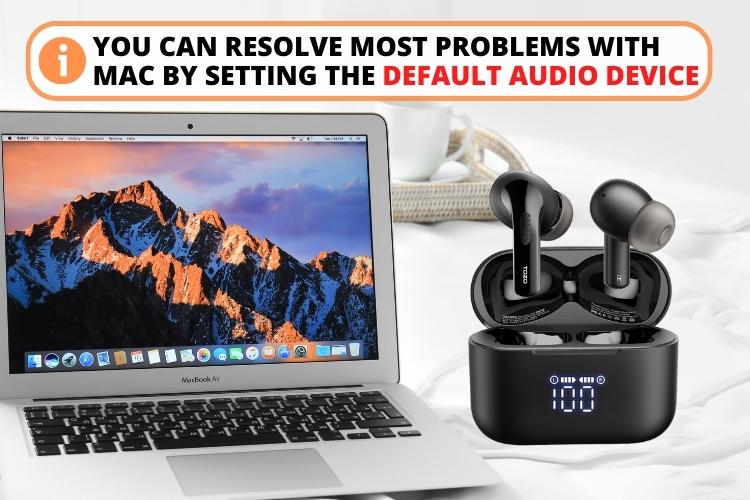
If you're still experiencing no sound in your headphones even after activating them, try the following steps:
- Access the Bluetooth Settings.
- Remove the TOZO headphones from the paired devices list.
- Repair the headphones with your device using the Bluetooth menu.
- Check if this resolves the issues and restores audio to your headphones.
Troubleshooting Audio Issues on an Android Device
When encountering audio problems on Android devices, the main culprit is often the media audio being turned off. Follow these simple steps to access your device's audio mixer:
- Press the volume buttons on your Android device.
- Tap the three dots located at the top of the volume bar. This action will open the volume mixer options.
- Once you've accessed the expanded options in the settings of the device, you will notice four bars. The third bar corresponds to the media volume, while the fourth bar controls the overall phone volume.
FAQ
To put TOZO earbuds in pairing mode, simply open the earbud case. Then you can connect it to your iOS device or Android, etc using a Bluetooth connection by going into the device settings.
There could be multiple reasons why your TOZO earbuds are not pairing like Bluetooth not enabled on your device or the earbuds are not sufficiently charged.
To reset your TOZO Bluetooth earbuds, you can typically press and hold the power button on the earbuds for a few seconds until the LED indicators flash or the earbuds power off. Please refer to the user manual of your specific TOZO earbuds model for the accurate reset procedure.
Conclusion
It is pretty annoying when you are trying to connect your earbuds but they won't pair with the device. A Bluetooth connection can be finicky sometimes. Therefore, you should always keep your earbuds charged and make sure they aren't already connected.
The pairing process is pretty simple. For Android and iPhone, you can find the Bluetooth and pairing option in the device's settings whereas, for Mac, you would have to access system preferences. If you are not able to connect TOZO earbuds, you can try resetting them.